
RiverWare Policy Language (RPL)
The following changes were made to the RiverWare Policy Language and related utilities.
RPL Set Search and Filter
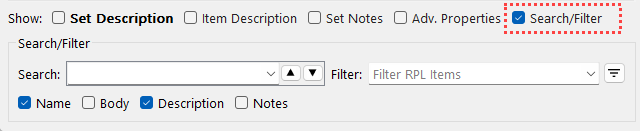
A new Search and Filter tool was added to RPL Set Editors and RPL Group Editors. The Search and Filter help you find or show occurrences of specified text within a RPL Set. The Search and Filter panel is shown by selecting the Search/Filter checkbox at the bottom of the RPL Set Editor or Group Editor as shown in Figure 1.12 or by using the Ctrl+F keyboard shortcut.
Note: Previously the Ctrl+F keyboard shortcut in a RPL Set Editor or Group Editor would add a function to the set. Its use has been changed to now show/hide the Search/Filter. To add a function, use the Add Function option from either the Set menu or Group menu.
Note: Similarly, the following keyboard shortcuts were removed: Add Policy Group (Ctrl+P), Add Utility Group (Ctrl+U), Add Rule (Ctrl+R), Add Goal (Ctrl+R), and Find (F3).
Figure 1.12 The RBS Ruleset Editor with Search/Filter controls highlighted
Search
Enter text into the Search field and click the previous or next arrow buttons to search for any RPL items in the current window whose name, body, description, or notes (based on the selected boxes) contain the entered text. If the text is found, the RPL item is selected.
Note: This Search utility replaces the previous search/find window opened from the Set menu and then Find... option or F3 shortcut. The more extensive RPL Search and Replace utility has not been changed. It is still opened using the F4 or Ctrl+Shift+F shortcuts or from the Edit menu of RPL windows.
Filter
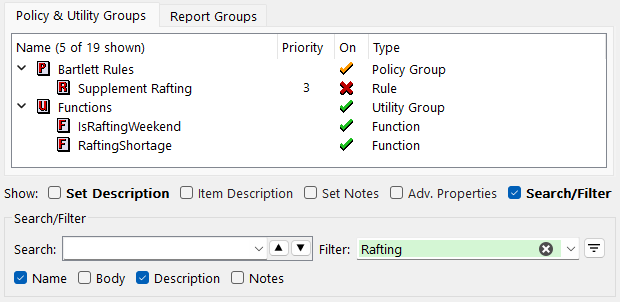
Enter text into the Filter field to display only those items whose name, body, description, or notes contain the entered text. When filtered, the heading column shows the number of items shown out of the total in the set.
Figure 1.13 RPL Search/Filter with 5 “Rafting” items filtered out of 19 total items
For more information, see Show Search/Filter in RiverWare Policy Language (RPL).
RPL Notice, Warning, and Alert Expressions Context
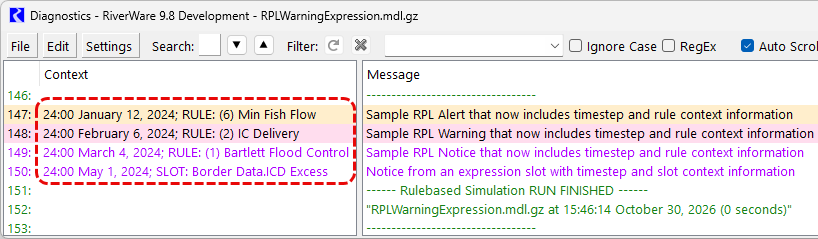
Previously RPL Notice, Warning, and Alert expressions, which are added from a button on the RPL Palette, did not include any context information, such as the rule or timestep, when their messages were written to the Diagnostics window. Now, that information is included in the Context panel when it is available. Note that RPL Notice, Warning, and Alert statements, which are added from the Statement menu of a rule or goal, already included this context information.
Figure 1.14 Sample RPL Alert, Warning, and Notice expression messages that now include context information
RPL Table Lookup Function Changes
See the Special Attention Note about RPL Table Lookup Function Changes.
Revised: 11/12/2026